

How to Convert DICOM Files
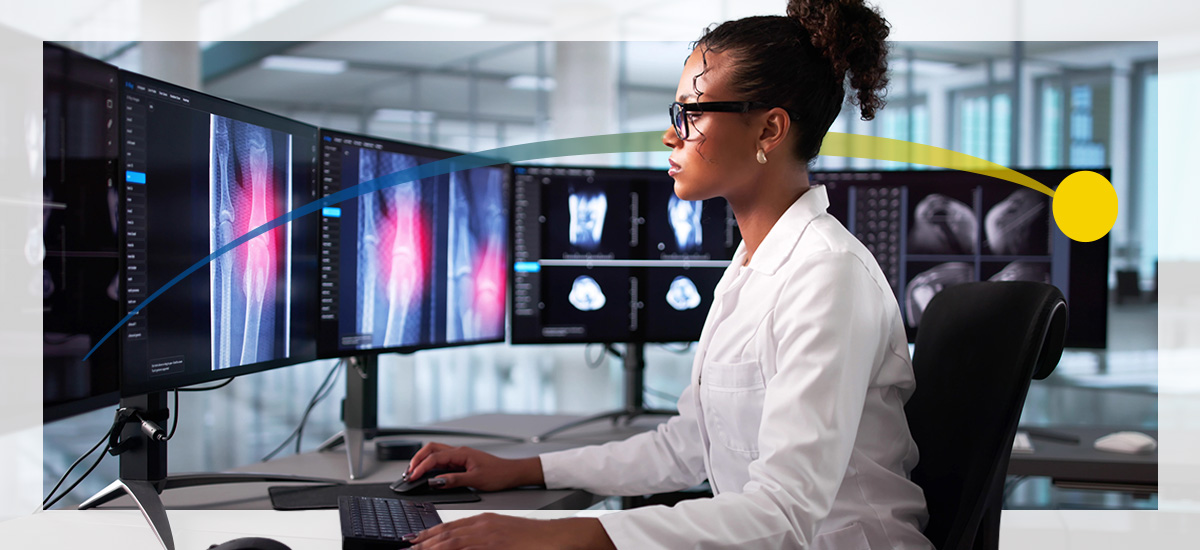
Medical imaging produces vast amounts of data every day, including CT scans, MRIs, ultrasounds and X-rays that all need to be stored, shared and analyzed accurately. Most of these images are saved in the Digital Imaging and Communications in Medicine (DICOM) format, a globally recognized standard that preserves image detail and essential patient information. But what happens when a radiologist, researcher or IT specialist needs to share these images with others who lack specialized viewing software? That's where DICOM file conversion becomes critical.
This guide breaks down the essentials of DICOM conversion, including why it's often necessary, best practices and popular tools. Whether the goal is to share with a patient or prepare data for research, correctly converting DICOM files safeguards image integrity and ensures compliance.
What Are DICOM Files and Why Convert Them?
DICOM is the universal standard for managing and transmitting medical images and related information. It was developed jointly by the National Electrical Manufacturers Association (NEMA) and the American College of Radiology to unify the storage, transfer and interpretation of imaging data across systems.
Each DICOM file stores two vital elements:
- Pixel data: The actual diagnostic image captured by a scanner or modality.
- Metadata: Patient identifiers, modality type, acquisition parameters and timestamps that link every image to its medical record.
This combination allows seamless communication between imaging devices, picture archiving and communication systems (PACS), and radiology information systems (RIS). DICOM ensures that a CT scanner in one hospital can share images with a PACS workstation in another without compromising accuracy or structural integrity.
Common Reasons for DICOM Conversion
While this standardization benefits healthcare organizations, DICOM files are often large, complex and difficult to access outside of clinical systems. Many practitioners and patients lack DICOM viewers, and common software can't display these files. Here are the most common reasons why healthcare professionals, researchers and imaging teams convert DICOM to JPG, PDF, Neuroimaging Informatics Technology Initiative (NIfTI) or other formats:
- Accessibility: Not every scan recipient has access to PACS or a DICOM viewer. Converting images makes them readable on virtually any device.
- Compatibility: Converted formats like JPEG or PDF are easier to embed in presentations, share in emails or upload to electronic health records (EHRs) that don't support native DICOM files.
- Research applications: Scientific software used in imaging research, particularly in neuroimaging, often relies on formats like NIfTI.
- Archiving and file management: While DICOM's embedded metadata is valuable, it increases file size. Converting to compressed formats, such as JPEG, can reduce storage requirements for nonclinical archives or teaching sets.
Types of DICOM Conversion Tools
Broadly, DICOM conversion tools fall into three categories — online converters, desktop applications, and command-line or programmatic utilities. Each offers different strengths for clinicians, researchers and IT specialists managing medical image workflows.
Online Converters
Online DICOM converters make file conversion accessible from any browser. Common examples include PostDICOM and DicomServer, which allow users to upload a file, select an output type — such as JPEG, PNG or PDF — and instantly download the converted image.
Here are the pros of online converters:
- Ideal for quick, one-off conversions
- No software installation required
- Fast and simple interface — often just a drag-and-drop process
- Accessible on any internet-connected device
- Often free or offer limited free conversions per day
They also have some cons:
- Uploading patient images to third-party servers introduces privacy and Health Insurance Portability and Accountability Act (HIPAA) compliance risks
- Many tools have file-size or usage limits
- Most platforms don't support batch processing or metadata management
Desktop Applications
Desktop-based software provides greater control and security for individuals who regularly handle patient data. Tools like MicroDicom, RadiAnt DICOM Viewer, Horos, IrfanView and Sante DICOM Viewer Pro provide built-in export functions that allow users to convert DICOM to JPG, PNG or PDF directly from a workstation.
Pros of desktop applications include:
- More secure than online tools because processing happens locally
- Many apps support batch conversion, window-level adjustments and format customization
- Useful for image manipulation, anonymization and series-to-PDF output
Some of the cons of these apps are:
- Require installation, local resources and periodic updates
- Some options are Windows- or Mac-only
- Premium features may come at a cost
Desktop software remains the preferred method for most healthcare facilities because it combines regulatory security with flexibility for research, reporting and collaboration.
Command-Line and Programmatic Conversion
For IT teams or researchers managing thousands of files, command-line and programmatic utilities offer unmatched flexibility. These tools are scriptable, allowing for the automation of conversions across entire imaging archives. Examples include dcm2niix, ImageMagick, DCMTK, and Python libraries like dicom2nifti and Pydicom combined with Pillow. They can batch process studies, reformat images or integrate conversion directly into a custom workflow.
These are the pros:
- Highly customizable and scriptable for batch conversion
- Integrates into existing research or clinical systems
- Can preserve metadata and create detailed logs
- Supports advanced functions, such as anonymization and orientation correction
- Allow conversion into advanced formats such as NIfTI for neuroimaging
Here are some cons:
- Requires technical proficiency and familiarity with command-line environments
- Not ideal for casual or one-time users
- Initial setup may be time-intensive
- Errors in syntax or metadata handling can interrupt conversion if not properly configured
These tools are most effective for researchers, developers and hospital IT engineers who need scalable, scriptable conversion as part of broader data processing systems.
Best Practices for DICOM Conversion
Efficient file conversion depends on both the tool you use and how you manage quality, compression and data privacy. Following a few best practices can help maintain diagnostic value and protect sensitive patient information.
Preserving Image Quality
The first consideration in any DICOM conversion is how much image information you need to retain. There are two main types of compression:
- Lossless compression reduces file size without compromising image data quality. This method is preferred when maintaining diagnostic or research-grade image fidelity is essential. Formats like PNG or TIFF use lossless compression.
- Lossy compression permanently discards certain visual details to reduce the file size. It's practical for presentations, educational content or quick patient sharing, where a smaller file size outweighs the need for pixel-level accuracy. JPEG falls into this category.
Here are some tips for maintaining image quality:
- Use lossless formats when preparing files for research, publication or clinical review.
- Apply consistent window and level settings during export to maintain contrast and brightness.
- Avoid multiple re-exports — each round of compression can degrade image quality.
- Verify that pixel spacing and aspect ratios remain correct in the converted files.
- Always verify a few sample outputs in your DICOM viewer before archiving or sharing to confirm fidelity.
- Use 8-bit JPEG at 90% to 95% for general viewing.
Anonymizing Patient Data
Before sharing or converting any imaging data, it's critical to protect patient privacy. Every DICOM file contains embedded metadata that can include personally identifiable information.
Data that is often removed or masked before conversion includes:
- Patient identifiers, such as name, ID, and collection or accession number
- Study and series descriptions containing personal information
- Institution and device identifiers that could trace back to a facility
- Date and time stamps, if they can be linked to patient records
Most professional DICOM viewers and conversion tools include anonymization features that scrub or replace identifying fields while preserving image fidelity. This step is essential for compliance with data protection regulations in healthcare and research environments.
How to Convert DICOM to Common Image Formats
Most radiology professionals and administrators only need to convert DICOM files to everyday formats such as JPEG, PNG or PDF. Below are simple, step-by-step examples that show how to achieve each safely and effectively.
Convert DICOM to JPEG
JPEG is a "lossy" format that compresses image data, making files smaller and faster to share. It's ideal for web use, reports, teaching materials and lightweight storage where diagnostic precision isn't required.
Here's a step-by-step conversion process using MicroDicom for Windows or MAC:
- Download and install MicroDicom from the official site.
- Open the software, click File > Open, and select your DICOM file.
- View the image, then go to File > Export > Export to JPEG.
- Select the output folder and set compression quality — typically 90% or higher for medical images.
- Save the file.
Convert DICOM to PNG
PNG is a "lossless" format, meaning it retains all visual data. It's the preferred choice for publications or educational content where maintaining high fidelity is essential.
Here's a step-by-step conversion process for RadiAnt or MicroDicom:
- Open your DICOM file in the viewer.
- Navigate to File > Export > To Image.
- Select PNG as the output format and choose your desired resolution.
- Confirm the output directory and save.
Convert DICOM to PDF
A PDF is useful when multiple images or slices from a DICOM series need to be shared as a single document. It creates a continuous, scrollable report that's easy to view and store.
Here's how to convert DICOM to PDF using a desktop application such as IrfanView with a DICOM plugin:
- Install IrfanView and its DICOM plugin.
- Open your DICOM file or series.
- Click File > Print and then select a PDF export option.
- Confirm page order and layout to maintain the correct sequence of slices.
- Save the resulting file to your chosen directory.
How to Convert DICOM to NIfTI for Neuroimaging
While JPEGs and PDFs serve communication needs, researchers often need volumetric formats that retain spatial orientation for computational analysis. That's where the NIfTI format becomes essential. It's a streamlined format built for large-scale image processing, making it easier to run quantitative or AI-driven analysis.
What Is the NIfTI Format?
The NIfTI format, also known by the extensions .nii or .nii.gz, is primarily used for neuroimaging applications, such as MRI and fMRI. Unlike traditional image files, NIfTI stores spatial and orientation data alongside the image itself. This metadata describes how each voxel — 3D pixel — relates to real-world anatomy, allowing precise alignment and measurement across scans.
Researchers prefer NIfTI because:
- It simplifies 3D and 4D imaging workflows.
- It integrates seamlessly with scientific software such as FSL, SPM, MRIcron and AFNI.
- It supports compression for more efficient storage without losing crucial image information.
Tools for Converting DICOM to NIfTI
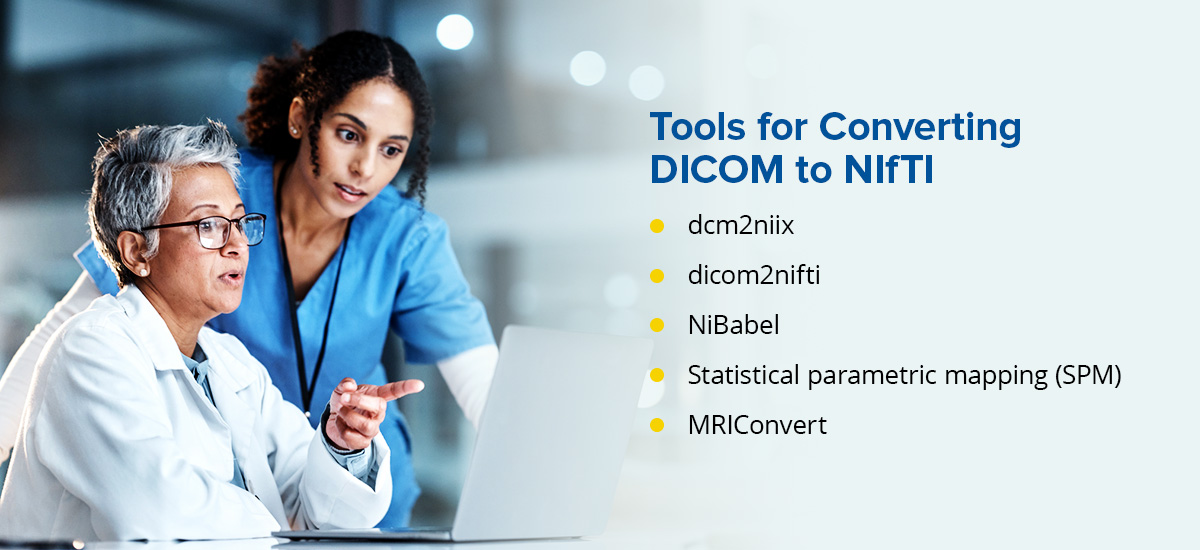
Here are the top tools researchers use to convert DICOM to NII:
- dcm2niix: A high-performance, open-source command-line utility that converts entire DICOM directories to NIfTI. It's widely used in research because it preserves metadata and generates JSON sidecar files for compatibility with the brain imaging data structure (BIDS) standard.
- dicom2nifti: A Python library ideal for integrating conversion into automated scripts. It supports compression, reorientation and bulk directory-level conversion.
- NiBabel: This is another Python library used for reading and writing neuroimaging data formats. It's well-suited for custom pipelines where researchers manipulate images programmatically.
- Statistical parametric mapping (SPM): A MATLAB-based software suite that offers graphical and command-line interfaces for DICOM import and NIfTI export, often used in fMRI analysis.
- MRIConvert: A GUI-based tool available on Windows and macOS that is easy to use for nonprogrammers. Supports various output formats, including NIfTI.
Each of these tools serves slightly different needs. If you're running scripts or managing large research datasets, start with dcm2niix. If you prefer point-and-click simplicity, MRIConvert is more approachable.
Security Considerations
Because medical images contain sensitive patient data, data protection is nonnegotiable. Every workflow involving the conversion of DICOM files should prioritize security from start to finish.
- Local processing: Whenever possible, process conversions locally rather than online. Local processing keeps all data within the organization's secure network and prevents accidental exposure through third-party servers.
- Encryption: If files need to be transferred after conversion, encrypt them using secure protocols such as SFTP, HTTPS or AES-256 file-level encryption. DICOM images stored on cloud platforms should be encrypted at rest and in transit.
- Access control: Restrict file access to authorized personnel only. Implement role-based permissions within PACS, local servers or shared repositories.
- Compliance: Ensure that your workflow and data management align with regional and institutional regulations such as HIPAA, the General Data Protection Regulation (GDPR) or the FDA's 21 CFR Part 11, where applicable.
- Storage: Store converted files in directories with restricted access, regular backups and life cycle policies. Consider using enterprise PACS systems or secure cloud vendor-neutral archives (VNAs) that allow structured, compliant storage and retrieval.
Frequently Asked Questions
Here are the answers to some common questions about converting DICOM files:
- What should I do if my DICOM file won't convert? First, check if the file opens correctly in a standard DICOM viewer. If not, the file may be incomplete or corrupt. If it does open, try a different converter — some tools handle proprietary DICOM formats better than others. When in doubt, tools like dicom2nifti (Python) or DCMTK provide more control and visibility into what's going wrong.
- Are there DICOM conversion tools for mobile devices? Most lightweight mobile apps only allow basic viewing of DICOM files on iOS or Android. For any file containing real patient data, use workstation-based or enterprise applications for conversion to maintain compliance and prevent data exposure.
- How do I automate conversion for an entire imaging archive or large datasets? Command-line tools like dcm2niix, DCMTK, or scripting environments using Pydicom are ideal for large-scale or routine conversions. You can schedule batch jobs, integrate them into research pipelines or even trigger conversions based on incoming studies via image routers or PACS event handlers.
- Can I convert DICOM without losing metadata? Lossless formats such as PNG or TIFF preserve pixel detail, but not all export formats carry the same metadata depth as DICOM. To keep reference information, store both the converted file and the original DICOM together. Some tools, such as dcm2niix, for example, allow exporting metadata as a sidecar text or JSON file for documentation purposes.
Transform Your Medical Imaging Workflow With Candelis, Inc.
Converting DICOM files to formats like JPEG, PNG, PDF and NIfTI improves accessibility, collaboration and downstream analysis — but only when done with the right tools and privacy safeguards in place. From research pipelines to clinical communication, choosing the correct format and platform can significantly impact image quality, compliance and workflow efficiency.
Candelis, Inc. helps hospitals and imaging centers eliminate workflow barriers through enterprise-grade, HIPAA-compliant DICOM solutions that make file routing, viewing and conversion seamless. Whether your priority is speeding up access to diagnostic images or centralizing data across facilities, Candelis provides the infrastructure to make it happen. Our solutions streamline workflow integration and empower clinicians to focus on what matters most — patient care.
To see how your organization can achieve faster image routing, smarter data management and true interoperability, contact Candelis today to schedule a personalized demo or connect with a product specialist.
- Log in to post comments
